

Experience
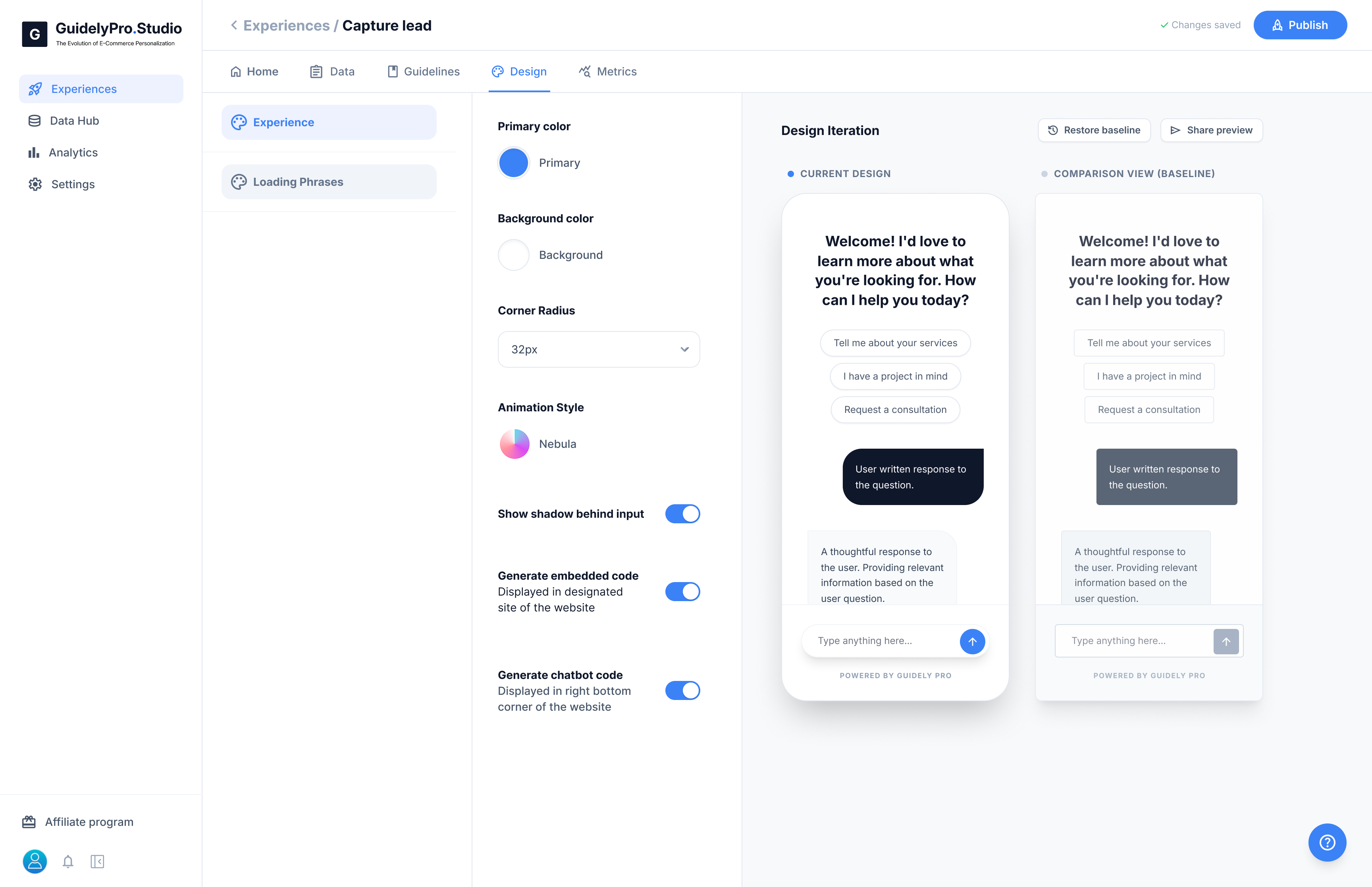
🎨 Visual Customization
You can adjust the core appearance of your Experience:- Primary color – Sets the main brand color
- Background color – Controls the chat background
- Corner radius – Adjusts roundness of UI elements
- Animation style – Defines interaction effects
- Input shadow – Adds depth to message input field
🖥 Display Options
Choose how the Experience appears on your website:- Generate embedded code – Display inside a specific section of a page
- Generate chatbot code – Display as a floating widget in the bottom corner
🔄 Design Iteration Preview
On the right side, you can preview changes in real time. You can:- Compare with baseline design
- Restore previous version
- Share preview link
Loading Phrases
The Loading Phrases section controls what visitors see while the AI is generating a response. These short messages create a smoother and more engaging waiting experience.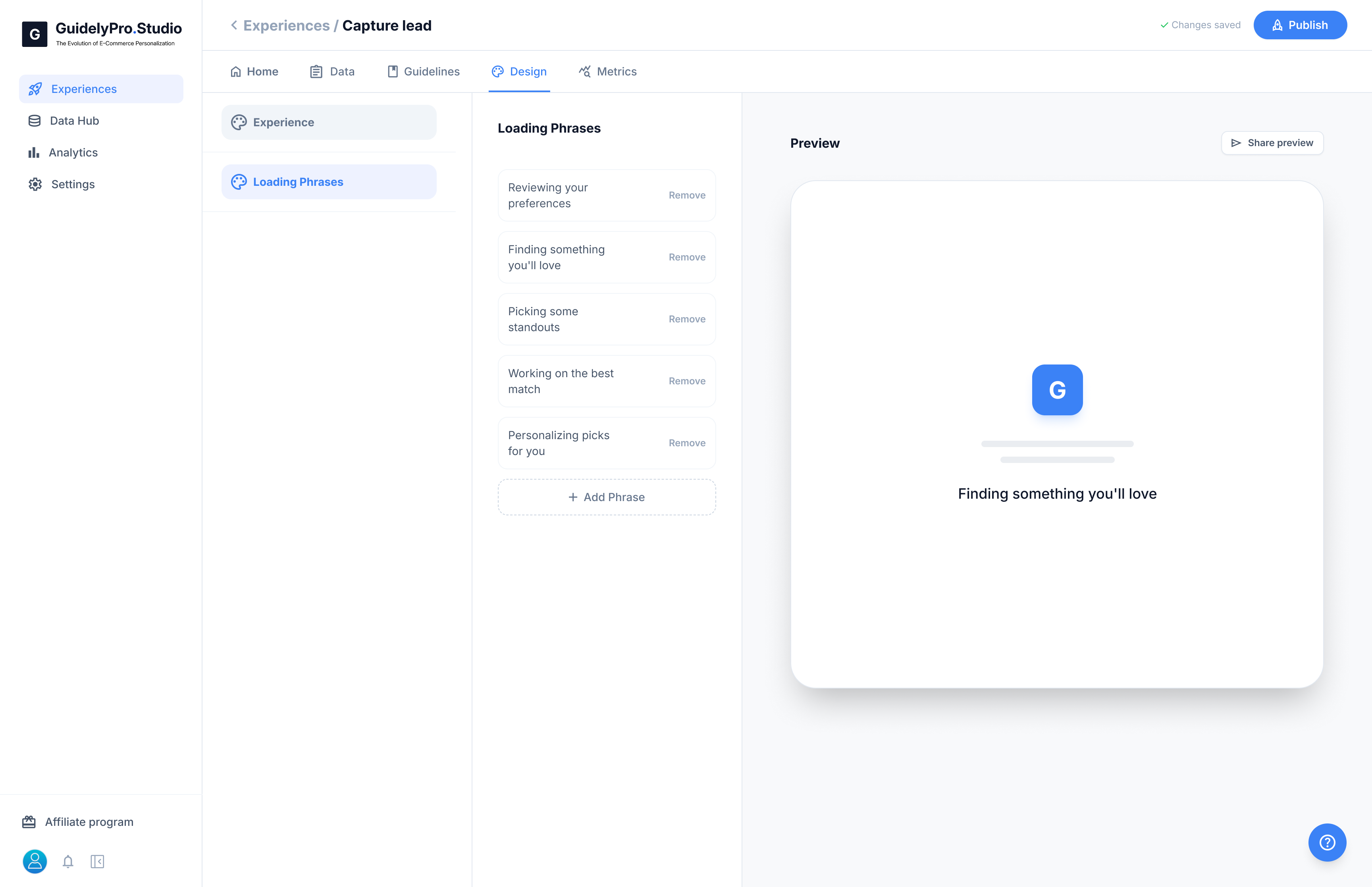
⏳ What Are Loading Phrases?
Loading phrases appear briefly when the AI is:- Reviewing user preferences
- Searching for matching products
- Generating recommendations
- Processing responses
✏️ Customize Your Messages
You can:- Edit existing phrases
- Remove phrases
- Add new custom phrases
- “Finding your perfect match…”
- “Personalizing your picks…”
- “Reviewing your preferences…”
👀 Live Preview
On the right side, you can preview how the loading phrase will appear inside the experience. This helps ensure the tone matches your brand. Well-crafted loading phrases make the Experience feel faster, smarter, and more human.The Design tab ensures your Experience feels native to your store and visually aligned with your brand.